Thursday, 7 March 2013

How to install Windows 8 on your Android Tab and Experience Metro Style with Touch and Gestures


Splashtop made waves in April when the mobile app company launched the Windows 8 Testbed Metro for the iPad. This iPad app allowed owners to experience the few highs and many lows of Windows 8 Metro. As Engadget put it then, it must be a bit uncomfortable for iPads, but it’s a very impressive app offering nearly all the functionality of Metro including the many multitouch swipe functions. And now it’s available for Android tablets, too.


The price is still the same: $49.99 but its current 50% off for an unspecified limited time. The app runs at a resolution of 1280 x 800 resolution and supports Android tabs ranging from seven to ten inches. Like its iPad counterpart the app supports Metro’s UI touch gestures allowing developers and consumers alike to experience most of Metro on their current devices.


If Windows 8 calls your name, it’s best to jump on the platform now. For most people Metro is not love at first sight. You have to learn to love Metro. And for that you can install Splashtop Android app to experience Windows 8 Touch and Gesture on your Android tab or Smartphones.

[Google Play] 

How To Install Windows XP on a Android Phone Or Tablet


Hey peeps what's up? So running windows xp on your Android device is possible. Honestly though, there's really no prupose. It's super slow, and well...just really slow and a great battery killer. But..still fun. This can work on your phone and tablet. So let's begin.

(First, make sure you have a bootable version of windows xp. Ideally, if it's packed into one simple .iso file then it will make your life a whole lot easier.)


For detailed instructions along with download links look here:
http://dl.dropbox.com/u/9134840/Opensourcegangster/windows%20xp.html

(or check here if the above site is down)
https://www.facebook.com/notes/opensourcegangster/how-to-run-windows-xp-on-an...

Anyone who is having trouble finding the .IMG file, you can download and use this one:http://i.minus.com/1343490885/qxAEJaD82sYe8aME7j_dRg/dguiAMjH9HmQb/c.zip

Quick links:

Bochs for Android: http://forum.xda-developers.com/showthread.php?t=1389700 and also download the zip folder that's provided in that link. It will be called "SDL.zip"

Bochs for PC: http://bochs.sourceforge.net/cgi-bin/topper.pl?name=See+All+Releases&url=...

Qemu manager for PC: http://www.davereyn.co.uk/download.htm

Here's the link to the original guide I got this from, you will also need to copy and paste the first user's source into your bochsrc.txt file. http://forum.xda-developers.com/showthread.php?t=1465365

And voila that's all you need to get started!

How To Install Play Store In Hcl Me U1 Or Any Android phone or tablet


Working On My Hcl Me U1

How To Install Play Store In Hcl Me U1 Or Any Android phone or tablet

1. Ist Download Android Commander and play store (Download Link Given)
2. After Downlaod Extract File On Destop
3. Install Android Commander on your Computer
4. Connect your Hcl tablet with Debugging mode
5. Now open Android Commander And copy play store.apk & google play service.apk and paste in \system\app
6. Now Disconnect your tablet
7. Factory Data Reset Your Tablet
8. After Reset Complet Yor hava play store
9. Now SignIn With Your ID
10. Enjoy Your Google play store

Download Link (Play Store) :- http://adf.ly/KSlKD
Download Link (Android Commander) :- http://adf.ly/KSlOe

Android x86 Flash Games, Facebook Games,FlashPlayer, Youtube, Twitch.tv Working


Hello Everyone..!!! These apps are tested and working perfectly on Android x86 laptop pcs and netbook pcs or Desktops.This is something that i'd tried to run on my Android x86 powered Acer Aspire One Netbook and these apps performed really well.You can download these apps directly from their official website.If udon't Know How to install Android x86 on your laptop pcs or Desktop or on Netbooks.(Click Here)x86 Opera Mobile Web Browser from Opera.com(Attached below)


Playing games online on opera web browser.


Flash Player 11.1 apk from adobe.com(Attached Below)


x86 Flash library(libflashplayer.so) from an intel android device Download Here 7zip-ed version also attached, please decompress if you download it from the attachments

A file browser with root(Optional) Attatched below(com.jrummy.root.browserfree-1.apk)
Now the real work starts here,
(You may wonder how to get files into your x86 Android
-if you are using live cd like ICS RC1, RC2, simply download those files on Android OS, or you can pack them into your system.sfs/system.img

-if you have your android installed:
--on ICS RC2, you can download those files on Android OS, or use your common os, access your Android file system((if you use ext3, ext2, ext1 as the fs, you will need linux, )), and place those files into /**your Android x86 build**/data/media

--on lower versions, download those files on Android OS, or use your common os, place those files into /**your Android x86 build**/system)

1. Install x86 Opera Mobile apk on your x86 Android OS, simply install the apk through a common file browser

2. Install FlashPlayer on your x86 Android OS, simply install the apk through a common file browser
3. Ok, this is relatively the hardest part, you may want a file browser with root
if you are familiar with linux terminal and you sure that you can do the file copying work properly, you can do it through the terminal emulator, remember to "su" first
You can also do it through other OS if you have Android installed, but I suggest to do it inside of your Android to prevent privilege problems

The simple and relatively hard job that can be done in many ways:
copy libflashplayer.so to data/data/com.adobe.flashplayer/lib/

4. Disable plugins in the default Android browser and flashplayer in Dolphin browser if you have it installed, cuz this two browsers will just crash if a flash exist in the page you brows
5. Launch Opera Mobile and enjoy you FlashPlayer!
Remember that, x86 Opera Mobile is a development build, not the one from market but the one listed above(when installed, the app icon is an O Silver in colour)

You will have to repeat the steps above everytime you boot, if you are using livecd and If you have your android installed like me, those steps are just a one time set-up, and you are free to enjoy your FlashPlayer on every boot!!!!"""

Learn How to install Android x86 on your laptop pcs or Desktop or on Netbooks.(Click Here).

VideoLan for Android-x86(Unofficial)


Hi, recently Videolan.org was released the source code and the way to compile our own APK to x86 architecture, looks like works pretty well, I was download the source code and I did compilated that for you.


You can download it from here:
Rapidgator : VLC_Android-x86_by314.apk md5sum: 2a0c3978b7862245bfdbd7ac446307e8
Mediafire : VLC_Android-x86_by314.apk md5sum: 2a0c3978b7862245bfdbd7ac446307e8
You can find the how-to here: http://wiki.videolan.org/AndroidCompile
Cheers.

Download Android-x86 4.0.4 RC2


ANDROID-X86 4.0 HAS BEEN TESTED / IT SHOULD WORK ON AMD BRAZOS (MSI 110W), ASUS EEEPC OR SOME ASUS LAPTOPS/TABLETS AND TEGAV2 / VIEWPAD 10. THESE ARE THE OFFICIALLY SUPPORTED DEVICES, BUT ANDROID-X86 SHOULD WORK ON OTHERS TOO. AN OLD LIST OF SUPPORTED DEVICES / HARDWARE CAN BE FOUND HERE.


How To Install Android On Your Netbook


Install Ice Cream Sandwich, the latest version of Android, on your netbook. Whether you want to play with Google’s mobile operating system or give new life to an otherwise discarded device, Android-x86 gives everyone a way to install Android on Intel netbooks.


It’s fast. Even better: the latest version of Android-x86 comes with access to the Android Market, something almost impossible to set up on older Intel versions of the software. This means you can try out Android apps before you decide to buy an Android device.

Heck, your netbook could end up becoming your Android device.

I showed you how to install Chrome OS on unsupported computers, but some of you complained that it’s little more than a browser. Of course, that’s all Chrome OS is supposed to be, but I understand the disappointment. Android, I think, is a little more exciting. With access to thousands of apps it’s versatile, and its integration with the Google eco-system is much deeper than that of Chrome OS.


It’s not terribly complicated to install, especially if you’ve installed some form of Linux in the past. Let’s walk through the process, then briefly explore Android on the netbook.


Step One: Download Androidx86

To get started, head to the Androidx86 project page. You’ll find the download here, but make sure you download the latest version: 4.0, better known as Ice Cream Sandwich.


There are a few different versions of 4.0 offered. Grab the version that best fits your netbook. Not sure what this is? Google your computer’s model along with “Androidx86″ and see what other people have had luck with. If you own an EEE PC like me, however, you’re in luck: everything works perfectly with the “eeepc” ISO.
Desktop users: it’s probably not worth trying.

Step Two: Copy To A Flash Drive

Now that you found the ISO file you need, it’s time to write it to a USB drive so you can boot from it. There are two main programs for doing this: UNetBootIn, which is cross platform, and Linux Live, which is only for Windows but very straightforward.

Use whichever you prefer; just copy the contents of the ISO to a flash drive. It doesn’t need to be huge: 1 GB should do it.
Click here to download Unetbootin.

Step Three: Install

Now that you’ve got your USB drive, it’s time to boot from it. You’ll see this boot screen:


If you just want to try out Android, go ahead and select the LiveCD mode. You won’t be able to save any customizing you do, of course, but it’s a good way to see how well Android works on your system.

If you’d rather get straight to installing Android, go ahead and pick the “Install” option. There’s not a lot of options for dual-botting built into the installer, so be warned: getting that working might take some skills on your part. See the Androidx86 installation instructions for more information. If you don’t care about losing your current OS, though, installation is straight-forward.
Optional: Install to SD Card

There’s another way, of course: you can install Android to an SD card. This won’t affect whatever operating system you typically use on your netbook but still lets you keep your apps and settings in place.

You’ll need a flash drive and an SD card to do this: the flash drive to install Android from and the SD card to install Android onto.


The process is simple: run the installer, but select your SD card to install to instead of your hard drive. This won’t affect your netbook’s primary drive, giving you a clean dual-boot environment.
Android on Your Netbook

So how does it work? Quite well. You can set up your home screen to look however you like, just like on a phone or tablet:


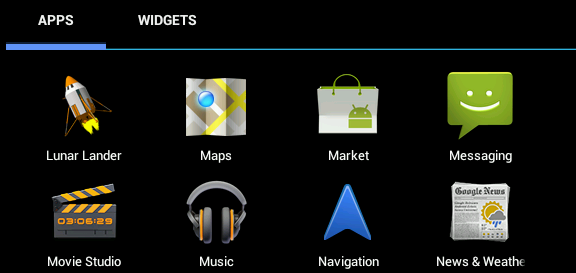
You can also browse every app installed on your computer:


Many Google staples are included, along with a number of other utilities and games. The best part: AndroidX86 now comes with access to the Android Market. Not everything will work, but I got my favorites apps working: Dropbox, Evernote, Wunderlist and Toggl. I even found a remote for XBMC that I’ll surely be writing about later. With some help from Google Voice I even got SMS messaging up and running!

Conclusion

Why try this? First of all: because it’s fun. Sure, it’s not the same as buying a new Android tablet, but breathing new life into an otherwise idle netbook is cool.