Showing posts with label Android x86. Show all posts

Friday, 15 March 2013

Install The Ubuntu Touch On Your Android Device

ubuntu-touch-on-nexus-7-icon


INSTALL THE UBUNTU TOUCH PREVIEW ON YOUR NEXUS ANDROID DEVICE

Warning Please take backup your rom on android device

You can install the preview release of Ubuntu Touch on a Nexus device (the Galaxy Nexus, Nexus 4, Nexus 7, or Nexus 10).


PREPARE UBUNTU ON THE DESKTOP

We will be using Ubuntu O/S on a PC to install Ubuntu Touch on android deivce. If you don’t have Ubuntu installed, you should be able to boot from an Ubuntu live CD and perform this process from the live Ubuntu environment without even installing Ubuntu on your computer.
To install the required software, open a terminal and run the following commands on your 

Ubuntu O/S

sudo add-apt-repository ppa:phablet-team/tools
sudo apt-get update
sudo apt-get install phablet-tools android-tools-adb android-tools-fastboot

add-phablet-team-repository


UNLOCK YOUR DEVICE
To install another operating system on your Android Device, you will need to unlock its boot loader. If you have already unlocked the boot loader to install a custom ROM or root your device, you can skip this section.

How To unlock the Android Device
Power Tuneoff 
Pressing the Power Button
 Press Volume Up and Volume Down buttons in same time. It will boot like this.

nexus-7-android-recovery


Connect the Android device to your computer with a USB cable, open a terminal, and run the following command:
   sudo fastboot oem unlock

Confirm that you want to unlock your device, then press the Power button to boot the device. Go through the typical Android setup process until you reach the home screen.


fastboot-oem-unlock

DEVICE PREPARATION
Now you will need to enable USB debugging on Android device. The instructions here assume your device is running Android 4.2.
open the Settings
select About phone or About tablet.
On the About screen, tap the Build number field seven times.
You’ll see the message “Congratulations, you are now a developer” appear on the screen.

android-about-tablet-build-number


Return to the main Settings screen and select the now-visible Developer option. Enable the USB debugging option on the Developer Options screen.

android-enable-usb-debugging

Next, run the following commands on your computer:
adb kill-server
adb start-server
Connect the Android device to your computer and you should see a confirmation pop-up on your device. Agree to the message.

android-allow-usb-debugging-confirmation

On the About Phone or About Tablet screen, locate the build number you tapped earlier and write it down. 
You’ll need this number when you reinstall Android later.

INSTALL UBUNTU TOUCH

If you’ve followed the instructions above, you should be able to install Ubuntu Touch by running the following command:

phablet-flash -b
ubuntu-on-nexus-flash-warning

This command will erase everything on your Android device, download the latest image of Ubuntu Touch, and install it on your device. After everything is done, your device will automatically reboot into the Ubuntu Touch environment. Be patient while the process completes.
ubuntu-touch-preview


EXCLUSIVE: Android-x86 4.0.4 “EeePC” running ARM apps (libhoudini videos/benchmarks, Angry birds, Quake3, Max Payne)


I must to say big thank you to all of you guys, thanks Chih-Wei Huang (Android-x86.org Team leader) and the rest of the team, Thank you Daniel Fages (aka Dan) from buildroid.org for her hack with libhoudini, Thank you all of you from Android-x86 google group, And thank you to all the people of #Android-x86 in freenode in special to Marex for her patience and help with git.


Okey, here we go, the PC in question is an ASUS Eeepc T101MT wich have this specs:
Intel-Atom N450 64bit (two thread detected, kernel SMP running in 32bit mode)
2GB RAM (full detected)
320GB HDD SATA (working) (40GB ext2 android-x86 dedicated partition)
Intel GMA3150 Pineview (working hardware acceleration but using Mesa DRI, works pretty fine)(brightness control fn-keys and touchscreen control works)
10″ Resistive Multitouch screen, two points (working perfect)
Wireless card Atheros Ath9k (working)
Sound card Intel HD (works perfect) (MIC working but not with all apps)
Bluetooth Broadcom EDR3.0 (works perfect) (GPS BT works)
Webcam (working good but upside down)
Sdcard slot (working and auto-mounted in fat32)
3 USB ports 2.0 (working, usbmass storage devices works and mount perfect)
Battery 5h or 6h (get charges faster, and battery works around 4h using wifi and full brigthness)


This is running Android-x86 ICS 4.0.4-r2.1 with libhoudini patches, you can find a how-to here: Add ARM emulation (Binary Translator aka “libhoudini”) on Android-x86 4.0 ICS builds Step by Step.

I will use this apps to do the benchmarks:
0xbench (Free)
Quake3droid 3.3(Search over the web)
AnTuTu Benchmark (free)
linpak (free)
CF-Bench (free)
Quadrant Standar (free NOT WORKS, crash in 3D test.)
Vellamo (free)
NenaMark1 (free)
NenaMark2 (free, Works but very sssssslow)
BrowserMark (Online)
GLBenchMark (free, but same as NenaMarket2 very ssssslow and need corporate license to setup)

Well, I have to tell you that I am like 4 or 5 days testing apps and games and trying to do work armv6 and armv7 stuff, but just armv5 works,I have observed that all (the system) run like before appliying the libhoudini changes, so very nice .

For begin I go to expose my case before the libhoudini update:

I have 250 apps installed at the moment, 230 before the update, after update to the new build with houdini i was get 77 updates of 230 (really impresive) I did try some apps, and I must to say that all seems to works, here a little list of few NEW apps working to put an example:

Angry Birds & Angry Birds Space (NOW WORKS, I was tested this 2 versions, but i was read that all versions works)
Quake3droid (NOW WORKS)
Max Payne (NOW WORKS)
OSMOS Demo (NOW WORKS)
Viber (NOW WORKS)
USTREAM (NOW WORKS)
ScummVM (NOW WORKS)
Cut the Rope (NOW WORKS)
SKYPE (NOW WORKS, but crash when login I hope we get a fix in next versions)
NetFlix (NOW WORKS, but I’m not in the US so I cant test it)
GTA III 10 years Anniversary (NOW WORKS, but not very good, has problems of performance)
Adobe acrobat reader (NOW WORKS and very faster)
Kidle app (WORKS 100% , NOW show pages correctly)
Defender updated (Still WORKING)
Defender II (NOW WORKS)
SketchBookX (WORKS great)
Shazam (updated still WORKING)
MapQuest (updated Still WORKING)
Forfone (WORKS I didnt used to call but seems works)
Tango (Same as forfone)
TuneIn Radio (WORKS, If you get some connection fault, try deactivating “chose fastests stream” in settings of the app)
MyTrails (still WORKING but now more faster than before)
Messenger (still WORKING after update)
Spotify (NOW shows the login screen but cant login for something about the connection)
Google video play (NOW WORKS I didnt rent any movie)

Like you can see, all the stuff works properly, and after update all the apps still working perfect.

Now is the time to begin the benchmarks, We will with the 0xbench:
I do big part of the tests with this soft, this have the 3 last results online here http://0xbenchmark.appspot.com/ and the rest in the public page here http://0xbenchmark.appspot.com/public here are the results:

msec : less is better.


fps3d: more is better.


mflops: more is better.


msec-js: less is better.


2d-fps: more is better.

Now you can take a look at the PublicPage of 0xbench and compare with this captures.

In the Quake3droid benchmark I did the OLD-SCHOOL way (4quakers only lol), this is how the game press did their test years back (I did from 1999 in my pc benchmarks), this is very easy, you can use in your PC too, just open the console and write:

/timedemo 1

/demo four

You can see that in this capture below..


To show or hide the console in Quake3droid touching upper the middle at the screen, when the benchmark is over you must show the console again, and we will get the results like this..


Thi is the interesting part in the benchmark, we have a very nice result, 40FPS in 30sec, and this is runing under LIBHOUDINI so COOL..! I did a video of the process take a look


The AnTuTu is a software that run natively with Android-x86, and I was get the same results than before applying libhoudini, take a look..


This is the Hardware info, and this is the benchmark results..


I dont know for you, but for me this is a very nice result, like I say at the begining of the article and like you can see in the Hardware Info picture we are using MESA DRI, and not GPU rendering and the results are amazing (at less to me ).

The Linpak benchmark isnt very good I dont know why but here are the results..


CF-Bench not bad results, looks like this is not for tablets????, I cant se tablets in the comparison


But the Vellamo test… oh guy haha.. this is another story (this one is the best), to put just one image of the detailed test I was splice with gimp..


And the good one, the comparision


To end with this rain of screen captures, I wanna end with BrowserMark, that benchmark I rather surprised, the score is very high..


Oh my god!! I win!!! lol… nooo wayyy, my ASUS Eeepc T101MT wins the ASUS EEPAD TRANSFORMER TF201 ???? YEEHAA!! ;D

Jokes aside, if you dont have enough with this captures, I did this videos of Angry Birds Space HD, and Max Payne.


And another one extra video of ScummVM ~~


I hope you enjoy this Tests/review, if that was helpful to you, please do some click in the banners, THANKS!

Thursday, 7 March 2013

How-To: Add flash player to Android-x86


How-To: Add flash player to Android-x86

After do some tests, I have flash player working in my EeePC with Android-x86 thanks to two dumps filtered of the Orange San Diego (code name for the Xolo x900 in europe), I did find here in Modaco’s web page, you can find the articles and dumps here “San Diego system dump 2.3.7” and “San Diego system dump 4.0.4″ (try with flashplayer of the 4.0.4 dump) (To get that working you must to have the HOUDINI stuff).

When you have the fileunzip it and look at /libs/ , copy the folder plugins..
Now, look at the folder /app and get the file FlashPlayer.apk
Copy this two files in the same folders of your Android-x86, reboot and enjoy.
Youtube works in web browser (just in full screen mode)
Dailymotion works in web browser (just in full screen mode, DONT USE the Dailymotion APP, that was deactivated my flashplayer (and maybe modificated some kind of permissions)
live.indiatimes looks like use some diferent player and dont works.
Russia Today videos now works (looks like allways if works is at full screen mode..)
BBC news videos is sending me to the google play to update the flash player, but there is not update button in the market just the OPEN button, so we have the last version.
CNN news videos the same as BBC.
liveleak seem like works but dont play.
Remember that we are using binary files compilated for another version of android, and we dont know enough about houdini by the same reason, we dont have the source code.
So be happy, Regards

App: 500px Photo Sharing App (Android-x86 COMPATIBLE)


App: 500px Photo Sharing App (Android-x86 COMPATIBLE)


The app called 500px, a popular photo sharing alternative to Flickr, has finally released on Android .


Their iOS app has been a smash hit for their users, and many have praised it for a sleek minimalist design. “The app takes cues from our iPad app, which is praised by its minimalistic and beautiful interface and focus on large, beautiful photos.” 500px said in their blog post upon release.
Taking queues from this success they have built their android counterpart to much of the same design.

The app will allow users to log-in or to sign up for a 500px account. View full resolution photos, share the photos across various social networks like Twitter and Facebook. As well as the standard favoring, commenting, and reading functions that come with most social apps.
One thing that catches the eye is the ability to read the EXIF information and location. Essentially the EXIF information is a collection of data that cameras, scanners, video cameras, and even tape recorders store on the file.
While the need to read a photos EXIF information isn’t crucial, I know as a photographer that it is something that you want to do from time to time. It gives people a more technical look at the file.

App: 500px Photo Sharing App (Android-x86 COMPATIBLE)


App: 500px Photo Sharing App (Android-x86 COMPATIBLE)


The app called 500px, a popular photo sharing alternative to Flickr, has finally released on Android .


Their iOS app has been a smash hit for their users, and many have praised it for a sleek minimalist design. “The app takes cues from our iPad app, which is praised by its minimalistic and beautiful interface and focus on large, beautiful photos.” 500px said in their blog post upon release.
Taking queues from this success they have built their android counterpart to much of the same design.

The app will allow users to log-in or to sign up for a 500px account. View full resolution photos, share the photos across various social networks like Twitter and Facebook. As well as the standard favoring, commenting, and reading functions that come with most social apps.
One thing that catches the eye is the ability to read the EXIF information and location. Essentially the EXIF information is a collection of data that cameras, scanners, video cameras, and even tape recorders store on the file.
While the need to read a photos EXIF information isn’t crucial, I know as a photographer that it is something that you want to do from time to time. It gives people a more technical look at the file.

Get ARM translator to work in Android-X86 4.0.4 RC2


TO GET THE INTEL ARM TRANSLATOR WORKING IN THE LATEST ANDROID-X86 4.0.4 RC2, YOU NEED TO DOWNLOAD 3 LIBRARIES FROM BUILDROID AND COPY THEM INTO THE SYSTEM FOLDER (SO MAKE SURE YOU SELECT TO INSTALL THE /SYSTEM DIRECTORY AS READ-WRITE WHILE INSTALLING ANDROID-X86!):


  • Download libhoudini.so and copy it to /system/lib/
  • Download libdvm_houdini.so and copy it to /system/lib/
  • Download the arm libs, extract the downloaded archive and copy the files to/system/lib/arm/

How to install Windows 8 on your Android Tab and Experience Metro Style with Touch and Gestures


Splashtop made waves in April when the mobile app company launched the Windows 8 Testbed Metro for the iPad. This iPad app allowed owners to experience the few highs and many lows of Windows 8 Metro. As Engadget put it then, it must be a bit uncomfortable for iPads, but it’s a very impressive app offering nearly all the functionality of Metro including the many multitouch swipe functions. And now it’s available for Android tablets, too.


The price is still the same: $49.99 but its current 50% off for an unspecified limited time. The app runs at a resolution of 1280 x 800 resolution and supports Android tabs ranging from seven to ten inches. Like its iPad counterpart the app supports Metro’s UI touch gestures allowing developers and consumers alike to experience most of Metro on their current devices.


If Windows 8 calls your name, it’s best to jump on the platform now. For most people Metro is not love at first sight. You have to learn to love Metro. And for that you can install Splashtop Android app to experience Windows 8 Touch and Gesture on your Android tab or Smartphones.

[Google Play

How To Install Windows XP on a Android Phone Or Tablet


Hey peeps what's up? So running windows xp on your Android device is possible. Honestly though, there's really no prupose. It's super slow, and well...just really slow and a great battery killer. But..still fun. This can work on your phone and tablet. So let's begin.

(First, make sure you have a bootable version of windows xp. Ideally, if it's packed into one simple .iso file then it will make your life a whole lot easier.)


For detailed instructions along with download links look here:
http://dl.dropbox.com/u/9134840/Opensourcegangster/windows%20xp.html

(or check here if the above site is down)
https://www.facebook.com/notes/opensourcegangster/how-to-run-windows-xp-on-an...

Anyone who is having trouble finding the .IMG file, you can download and use this one:http://i.minus.com/1343490885/qxAEJaD82sYe8aME7j_dRg/dguiAMjH9HmQb/c.zip

Quick links:

Bochs for Android: http://forum.xda-developers.com/showthread.php?t=1389700 and also download the zip folder that's provided in that link. It will be called "SDL.zip"

Bochs for PC: http://bochs.sourceforge.net/cgi-bin/topper.pl?name=See+All+Releases&url=...

Qemu manager for PC: http://www.davereyn.co.uk/download.htm

Here's the link to the original guide I got this from, you will also need to copy and paste the first user's source into your bochsrc.txt file. http://forum.xda-developers.com/showthread.php?t=1465365

And voila that's all you need to get started!

How To Install Play Store In Hcl Me U1 Or Any Android phone or tablet


Working On My Hcl Me U1

How To Install Play Store In Hcl Me U1 Or Any Android phone or tablet

1. Ist Download Android Commander and play store (Download Link Given)
2. After Downlaod Extract File On Destop
3. Install Android Commander on your Computer
4. Connect your Hcl tablet with Debugging mode
5. Now open Android Commander And copy play store.apk & google play service.apk and paste in \system\app
6. Now Disconnect your tablet
7. Factory Data Reset Your Tablet
8. After Reset Complet Yor hava play store
9. Now SignIn With Your ID
10. Enjoy Your Google play store

Download Link (Play Store) :- http://adf.ly/KSlKD
Download Link (Android Commander) :- http://adf.ly/KSlOe

Android x86 Flash Games, Facebook Games,FlashPlayer, Youtube, Twitch.tv Working


Hello Everyone..!!! These apps are tested and working perfectly on Android x86 laptop pcs and netbook pcs or Desktops.This is something that i'd tried to run on my Android x86 powered Acer Aspire One Netbook and these apps performed really well.You can download these apps directly from their official website.If udon't Know How to install Android x86 on your laptop pcs or Desktop or on Netbooks.(Click Here)x86 Opera Mobile Web Browser from Opera.com(Attached below)


Playing games online on opera web browser.


Flash Player 11.1 apk from adobe.com(Attached Below)


x86 Flash library(libflashplayer.so) from an intel android device Download Here 7zip-ed version also attached, please decompress if you download it from the attachments

A file browser with root(Optional) Attatched below(com.jrummy.root.browserfree-1.apk)
Now the real work starts here,
(You may wonder how to get files into your x86 Android
-if you are using live cd like ICS RC1, RC2, simply download those files on Android OS, or you can pack them into your system.sfs/system.img

-if you have your android installed:
--on ICS RC2, you can download those files on Android OS, or use your common os, access your Android file system((if you use ext3, ext2, ext1 as the fs, you will need linux, )), and place those files into /**your Android x86 build**/data/media

--on lower versions, download those files on Android OS, or use your common os, place those files into /**your Android x86 build**/system)

1. Install x86 Opera Mobile apk on your x86 Android OS, simply install the apk through a common file browser

2. Install FlashPlayer on your x86 Android OS, simply install the apk through a common file browser
3. Ok, this is relatively the hardest part, you may want a file browser with root
if you are familiar with linux terminal and you sure that you can do the file copying work properly, you can do it through the terminal emulator, remember to "su" first
You can also do it through other OS if you have Android installed, but I suggest to do it inside of your Android to prevent privilege problems

The simple and relatively hard job that can be done in many ways:
copy libflashplayer.so to data/data/com.adobe.flashplayer/lib/

4. Disable plugins in the default Android browser and flashplayer in Dolphin browser if you have it installed, cuz this two browsers will just crash if a flash exist in the page you brows
5. Launch Opera Mobile and enjoy you FlashPlayer!
Remember that, x86 Opera Mobile is a development build, not the one from market but the one listed above(when installed, the app icon is an O Silver in colour)

You will have to repeat the steps above everytime you boot, if you are using livecd and If you have your android installed like me, those steps are just a one time set-up, and you are free to enjoy your FlashPlayer on every boot!!!!"""

Learn How to install Android x86 on your laptop pcs or Desktop or on Netbooks.(Click Here).

VideoLan for Android-x86(Unofficial)


Hi, recently Videolan.org was released the source code and the way to compile our own APK to x86 architecture, looks like works pretty well, I was download the source code and I did compilated that for you.


You can download it from here:
Rapidgator : VLC_Android-x86_by314.apk md5sum: 2a0c3978b7862245bfdbd7ac446307e8
Mediafire : VLC_Android-x86_by314.apk md5sum: 2a0c3978b7862245bfdbd7ac446307e8
You can find the how-to here: http://wiki.videolan.org/AndroidCompile
Cheers.

Download Android-x86 4.0.4 RC2


ANDROID-X86 4.0 HAS BEEN TESTED / IT SHOULD WORK ON AMD BRAZOS (MSI 110W), ASUS EEEPC OR SOME ASUS LAPTOPS/TABLETS AND TEGAV2 / VIEWPAD 10. THESE ARE THE OFFICIALLY SUPPORTED DEVICES, BUT ANDROID-X86 SHOULD WORK ON OTHERS TOO. AN OLD LIST OF SUPPORTED DEVICES / HARDWARE CAN BE FOUND HERE.


How To Install Android On Your Netbook


Install Ice Cream Sandwich, the latest version of Android, on your netbook. Whether you want to play with Google’s mobile operating system or give new life to an otherwise discarded device, Android-x86 gives everyone a way to install Android on Intel netbooks.


It’s fast. Even better: the latest version of Android-x86 comes with access to the Android Market, something almost impossible to set up on older Intel versions of the software. This means you can try out Android apps before you decide to buy an Android device.

Heck, your netbook could end up becoming your Android device.

I showed you how to install Chrome OS on unsupported computers, but some of you complained that it’s little more than a browser. Of course, that’s all Chrome OS is supposed to be, but I understand the disappointment. Android, I think, is a little more exciting. With access to thousands of apps it’s versatile, and its integration with the Google eco-system is much deeper than that of Chrome OS.


It’s not terribly complicated to install, especially if you’ve installed some form of Linux in the past. Let’s walk through the process, then briefly explore Android on the netbook.


Step One: Download Androidx86

To get started, head to the Androidx86 project page. You’ll find the download here, but make sure you download the latest version: 4.0, better known as Ice Cream Sandwich.


There are a few different versions of 4.0 offered. Grab the version that best fits your netbook. Not sure what this is? Google your computer’s model along with “Androidx86″ and see what other people have had luck with. If you own an EEE PC like me, however, you’re in luck: everything works perfectly with the “eeepc” ISO.
Desktop users: it’s probably not worth trying.

Step Two: Copy To A Flash Drive

Now that you found the ISO file you need, it’s time to write it to a USB drive so you can boot from it. There are two main programs for doing this: UNetBootIn, which is cross platform, and Linux Live, which is only for Windows but very straightforward.

Use whichever you prefer; just copy the contents of the ISO to a flash drive. It doesn’t need to be huge: 1 GB should do it.
Click here to download Unetbootin.

Step Three: Install

Now that you’ve got your USB drive, it’s time to boot from it. You’ll see this boot screen:


If you just want to try out Android, go ahead and select the LiveCD mode. You won’t be able to save any customizing you do, of course, but it’s a good way to see how well Android works on your system.

If you’d rather get straight to installing Android, go ahead and pick the “Install” option. There’s not a lot of options for dual-botting built into the installer, so be warned: getting that working might take some skills on your part. See the Androidx86 installation instructions for more information. If you don’t care about losing your current OS, though, installation is straight-forward.
Optional: Install to SD Card

There’s another way, of course: you can install Android to an SD card. This won’t affect whatever operating system you typically use on your netbook but still lets you keep your apps and settings in place.

You’ll need a flash drive and an SD card to do this: the flash drive to install Android from and the SD card to install Android onto.


The process is simple: run the installer, but select your SD card to install to instead of your hard drive. This won’t affect your netbook’s primary drive, giving you a clean dual-boot environment.
Android on Your Netbook

So how does it work? Quite well. You can set up your home screen to look however you like, just like on a phone or tablet:


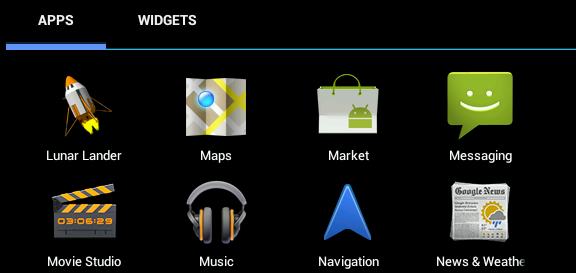
You can also browse every app installed on your computer:


Many Google staples are included, along with a number of other utilities and games. The best part: AndroidX86 now comes with access to the Android Market. Not everything will work, but I got my favorites apps working: Dropbox, Evernote, Wunderlist and Toggl. I even found a remote for XBMC that I’ll surely be writing about later. With some help from Google Voice I even got SMS messaging up and running!

Conclusion

Why try this? First of all: because it’s fun. Sure, it’s not the same as buying a new Android tablet, but breathing new life into an otherwise idle netbook is cool.